Clearing original document jams
When an original document jams in the document feeder, a warning message appears on the display.
![[Caution]](../../common/caution.png)
|
|
|
To avoid tearing the document, remove the jammed document slowly and carefully. |
![[Note]](../../common/note.png)
|
|
|
To prevent document jams, use the scanner glass for thick, thin or mixed paper- type originals. |
Original paper jam in front of scanner
-
Remove any remaining pages from the document feeder.
-
Open the document feeder cover.
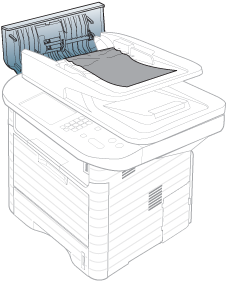
-
Gently remove the jammed paper from the document feeder.
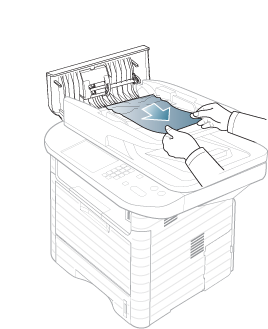
-
Close the document feeder cover.
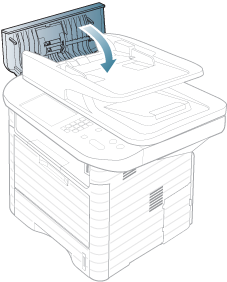
Original paper jam inside of scanner
-
Remove any remaining pages from the document feeder.
-
Open the document feeder cover.
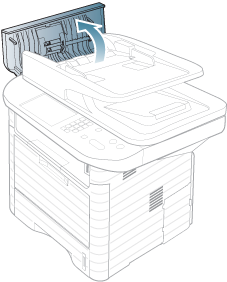
-
Gently remove the jammed paper from the document feeder.
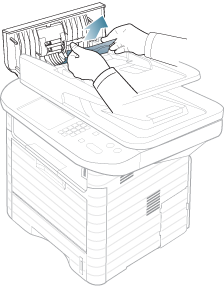
If you see no paper in this area, go to next step.
-
Open the document feeder.
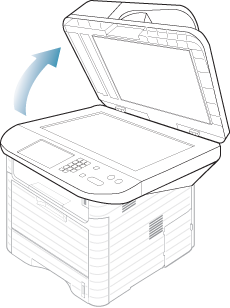
-
Grasp the misfeed paper, and remove the paper from the feed area by carefully pulling it.
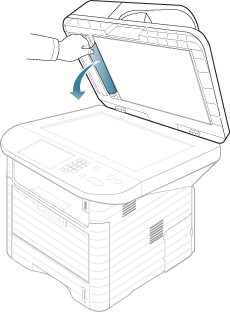
-
Close the document feeder.
Original paper jam in exit area of scanner
-
Remove any remaining pages from the document feeder.
-
Gently remove the jammed paper from the document feeder.
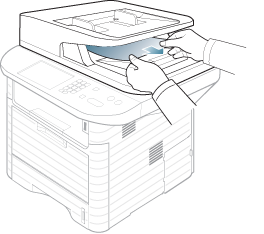
Original paper jam in scanner duplex path
|
|
|
|
For SCX-4833FR, SCX-4835FR, SCX-563x Series and SCX-573x Series. |
-
Remove any remaining pages from the document feeder.
-
Open the document feeder cover.
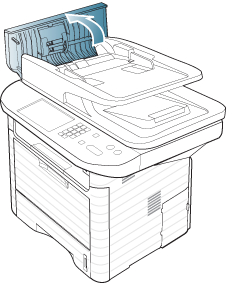
-
Open the duplex jam cover.
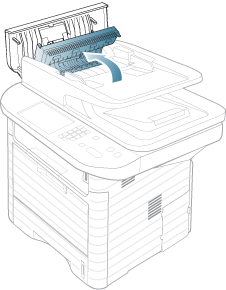
-
Pull the jammed paper gently out of the document feeder.
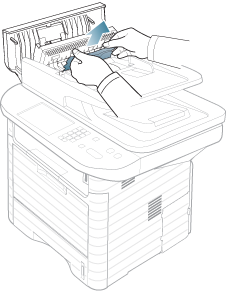
Close the duplex jam cover and the document feeder cover. If you do not see paper in this area, go to the next step.
-
Open the document feeder.
-
Grasp the misfeed paper, and remove the paper from the feed area by carefully pulling it.
-
Close the document feeder.