Control panel overview
![[Note]](../../common/note.png)
|
|
|
This control panel may differ from your machine depending on its model. There are various types of control panels. |
Type A
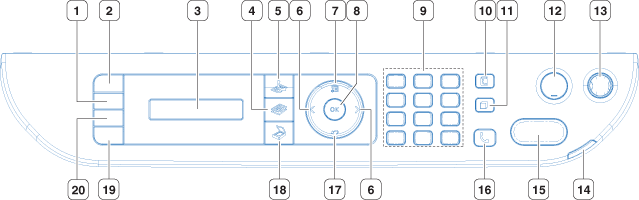
|
1 |
|
Adjusts the brightness level to make a copy for easier reading, when the original contains faint markings and dark images. |
|
2 |
|
Allows you to copy both sides of an ID card like a driver’s license on a single side of paper. |
|
3 |
Display screen |
Shows the current status and displays prompts during an operation. |
|
4 |
Copy |
Switches to Copy mode. |
|
5 |
Fax |
Switches to Fax mode. |
|
6 |
Left/Right Arrows |
Scrolls through the options available in the selected menu and increases or decreases values. |
|
7 |
|
Opens Menu mode and scrolls through the available menus. |
|
8 |
|
Confirms the selection on the screen. |
|
9 |
Numeric keypad |
Dials a number or enters alphanumeric characters. |
|
10 |
|
Allows you to store frequently used fax numbers and email addresses or search for stored fax numbers or email addresses. |
|
11 |
|
Redials the last number in ready mode, or inserts a pause into a fax number in Edit mode. |
|
12 |
|
Stops an operations at any time. |
|
13 |
/Wakeup |
Turns the power on or off, or wakes up the machine from the power save mode. If you need to turn the machine off, press this button for more than three seconds. You can also turn the power on, or wake up the machine from power save mode by pressing this button. |
|
14 |
LED |
Indicates the status of your machine (see Understanding the status LED). |
|
15 |
|
Starts a job. |
|
16 |
|
When you press this button, you can hear a dial tone. Then enter a fax number. It is similar to making a call using speaker phone. |
|
17 |
|
Sends you back to the upper menu level. |
|
18 |
Scan |
Switches to Scan mode. |
|
19 |
|
Turn into eco mode to reduce toner consumption and paper usage (see Eco options). |
|
20 |
|
Allows you to directly print files stored on a USB memory device when it is inserted into the USB port on the front of your machine. |
Type B
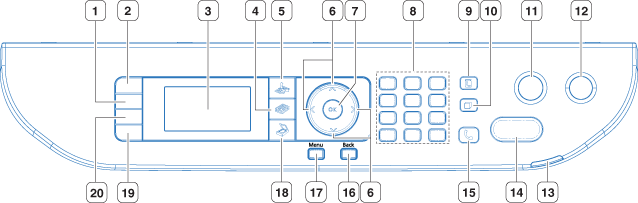
|
1 |
|
Adjusts the brightness level to make a copy for easier reading, when the original contains faint markings and dark images. |
|
2 |
|
Allows you to coy both sides the ID card like a driver’s license to a single side of paper. |
|
3 |
Display screen |
Shows the current status and prompts during an operation. |
|
4 |
Copy |
Activates Copy mode. |
|
5 |
Fax |
Activates Fax mode. |
|
6 |
Arrows |
Scroll through the options available in the selected menu, and increase or decrease values. |
|
7 |
|
Confirms the selection on the screen. |
|
8 |
Numeric keypad |
Dials a number or enters alphanumeric characters. |
|
9 |
|
Allows you to store frequently used fax numbers and email addresses or search for stored fax numbers or email addresses. |
|
10 |
|
Redials the last number in ready mode, or inserts a pause into a fax number in Edit mode. |
|
11 |
|
Stops an operations at any time. |
|
12 |
/Wakeup |
Turn the power on or off, or wake up the machine from the power save mode. If you need to turn the machine off, press this button for more than three seconds. You can also turn the power on, or wake up the machine from power save mode by pressing this button. |
|
13 |
LED |
Shows the status of your machine (see Understanding the status LED). |
|
14 |
|
Starts a job. |
|
15 |
|
When you press this button, you can hear a dial tone. Then enter a fax number. It is similar to making a call using speaker phone. |
|
16 |
|
Sends you back to the upper menu level. |
|
17 |
|
Enters Menu mode and scrolls through the available menus. |
|
18 |
Scan |
Activates Scan mode. |
|
19 |
|
Turn into eco mode to reduce toner consumption and paper usage (see Eco options). |
|
20 |
|
Allows you to directly print files stored on a USB memory device when it is inserted into the USB port on the front of your machine. |
Type C
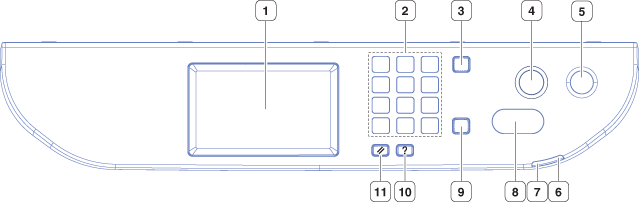
|
1 |
Display screen |
Shows the current status and prompts during an operation. |
|
2 |
Numeric keypad |
Dials a number or enters alphanumeric characters. |
|
3 |
|
Deletes characters in the edit area. |
|
4 |
|
Stops an operations at any time. |
|
5 |
/Wakeup |
Turn the power on or off, or wake up the machine from the power save mode. If you need to turn the machine off, press this button for more than three seconds. You can also turn the power on, or wake up the machine from power save mode by pressing this button. |
|
6 |
LED |
Shows the current status of the wireless network connection (see Understanding the status LED). |
|
7 |
|
Shows the status of your machine (see Understanding the status LED). |
|
8 |
|
Starts a job. |
|
9 |
|
When you press this button, you can hear a dial tone. Then enter a fax number. It is similar to making a call using speaker phone. |
|
10 |
|
Gives detailed information about this machine’s menus or status. |
|
11 |
|
Resets the current machine’s setup. |