If printing quality problems occur or if you use your machine in a dusty environment, you need to clean your machine regularly to keep the best printing condition and use your machine longer.
![[Caution]](../../common/icon_caution.png)
|
|
|
Read the following precautions before cleaning the machine: any damages due to user’s mis-handling is not covered by the warranty: |
-
Turn the machine’s power off and unplug all the power cords.
-
Do not disassemble the machine without following the instructions in this guide.
-
Do not clean the machine with cleaning materials containing large amounts of alcohol, solvent, or other strong substances. They can discolor or distort the cabinet.
-
Do not use a vacuum cleaner to clean the toner dust, we recommend you use a cloth or tissue dampened with water to clean it. If you use a vacuum cleaner, toner blows into the air and might be harmful to you.
-
When using a dampened cloth, be careful not to drip any water into the machine: it might cause an electric shock.
-
For more safety issues, refer to the safety information chapter in the User’s Guide.
Clean the machine cabinet or the display screen with a soft, lint-free cloth. Dampen the cloth slightly with water, but be careful not to let any water drip onto or into the machine.
During the printing process, paper, toner, and dust particles can accumulate inside the machine. These accumulations can cause print quality problems, such as toner specks or smearing. Cleaning the inside of the machine clears and reduces printing quality problems.
-
Turn the machine off and unplug the power cord. Wait for the machine to cool down.
-
Open the front cover and pull the toner cartridge out.

-
With a dry, lint-free cloth, wipe away any dust and spilled toner from the toner cartridge area.
While cleaning the inside of the machine, be careful not to damage the transfer roller or any other inside parts. Do not use solvents such as benzene or thinner to clean. Printing quality problems can occur and cause damage to the machine.
-
Reinsert the toner cartridges. Hold the toner cartridge and align it with the corresponding slot inside the machine. Insert it back into its slot until it locks in place.

-
Close the front door. Ensure that the cover is securely closed.
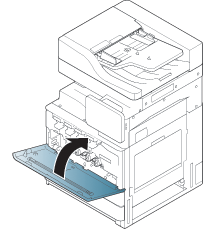
![[Note]](../../common/icon_note.png)
If the front door is not completely closed, the machine will not operate.
-
Plug in the power cord and turn the machine on.
-
Open the front door.
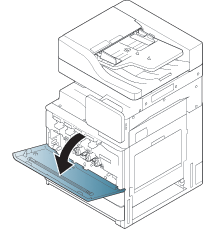
-
Remove the waste toner container.
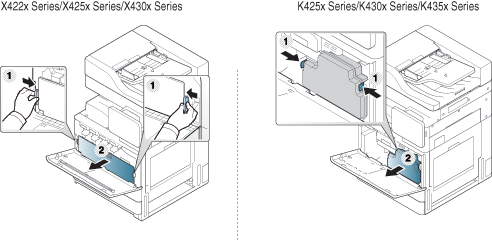
-
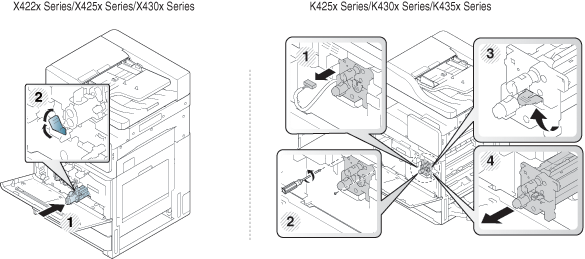
Pull the corresponding imaging units out from the machine.
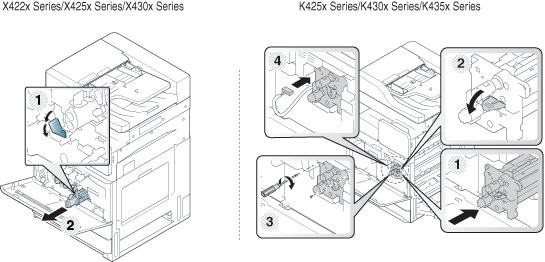
-
To prevent damage to the imaging unit, do not expose it to light for more than a few minutes. Cover it with a piece of paper, if necessary.
-
Do not touch the green surface underside of the imaging unit.
-
-
With a dry, lint-free cloth, wipe away any dust and spilled toner from the imaging unit area.
-
Reinsert the imaging units. Labels inside the machine identify each imaging unit’s position. Hold the handles on the new imaging unit and push the imaging unit until it locks into place.
-
Take out the LSU window cleaning stick (X422x/X425x/X430x/X40x series only).

-
Locate the LSU window cleaning hole and insert the LSU window cleaning stick. Slowly push and pull the LSU window cleaning stick 4 or 5 times to clean the LSU window (X422x/X425x/X430x/X40x seriesonly).

-
Insert LSU window cleaning stick back into its place (X422x/X425x/X430x/X40x series only).
-
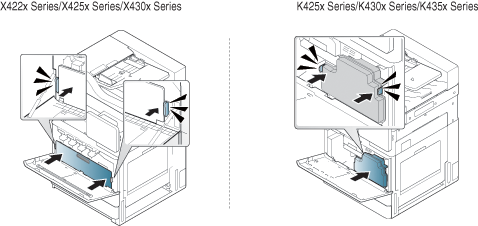
Insert the waste toner container until it locks in place.
-
Close the front cover. Ensure that the cover is securely closed.
If the front cover is not completely closed, the machine will not operate.
The paper dust stick and the chargers of the imaging units will need to be cleaned after a specified number of paper is printed out. When the message that demands you to clean the chargers of the imaging units appears, you have to clean the paper dust stick first. Then clean the chargers. The time when the message appears depends on environmental factors like altitude, temperature, humidity, and so on. You need to clean the charger to maintain printing quality. If cleaning is done, the message will disappear automatically.
Follow the cleaning procedure below.
|
|
|
|
Click this link to open an animation about cleaning the charger of imaging units. |
-
Open the front door.
-
Remove the waste toner container.
-
Pull the paper dust stick out.

-
Remove the paper dust.

-
Insert the paper dust stick back.

-
Insert the waste toner container until it locks in place.
-
Close the front door. Ensure that the cover is securely closed.
If the message still appears, do step 7and 8 again.
-
Open the front door.
-
Squeeze the left/right locking levers and push outward. Remove the waste toner container.
-
With a dry, lint-free cloth, wipe away any dust and spilled toner from the waste toner container area.
-
Reinsert the waste toner container.
-
Close the front door. Ensure that the cover is securely closed.
-
Plug in the power cord and turn the machine on.
-
Open the front door.
-
Squeeze the left/right locking levers and push outward. Remove the waste toner container.
-
Take out the LSU window cleaning stick.
-
Locate the LSU window cleaning hole and insert the LSU window cleaning stick.
Slowly push and pull the LSU window cleaning stick 4 or 5 times to clean the LSU window.
-
Insert the waste toner container until it locks in place.
-
Close the front cover. Ensure that the cover is securely closed.
If the front cover is not completely closed, the machine will not operate.
Keeping the scan unit clean helps to ensure the best possible copy quality. We suggest that you clean the scan unit at the start of each day and during the day, as needed.
-
Prepare a soft, lint-free cloth.
-
Open the scanner lid.
-
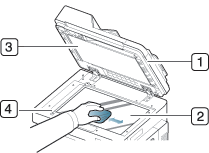
Wipe the surface of the scanner glass and the document feeder glass with the cloth until it is clean and dry.
-
Scanner lid
-
Scanner glass
-
White sheet
-
Document feeder glass
-
-
Wipe the underside of the scanner lid and white sheet until it is clean and dry.
-
Close the scanner lid.