Maintenance
This chapter provides information for maintaining your machine and the toner cartridge.
Printing a machine report
You can print the machine's information.
-
Press
 on
the control panel.
on
the control panel. -
Press up/down arrow to highlight and press .
-
Press up/down arrow to highlight and press .
-
The display shows , then press to print the configuration report.
To view the supply life indicators, follow the steps below:
-
Press
on
the control panel. -
Press up/down arrow to highlight and press .
-
Press up/down arrow to highlight and press .
-
Press up/down arrow to highlight and press .
-
The display shows options as you press up/down arrow.
If you are experiencing blurred, faded, or smeared printouts, you can clear the problem by printing a cleaning sheet, provided by your printer.
You can Print:
-
Press
on
the control panel. -
Press up/down arrow to highlight and press .
-
Press up/down arrow to highlight and press .
-
Press up/down arrow to highlight and press .
Your machine automatically picks up a sheet of paper from the tray and prints out a cleaning sheet with dust or toner particles on it.
Using
If toner in the cartridge has run out, a message informing user to change the toner cartridge appears. You can set the option for this message to appear or not.
-
Press
on
the control panel. -
Press up/down arrow to highlight and press .
-
Press up/down arrow to highlight and press .
-
Press up/down arrow to highlight and press .
If printing quality problems occur or if you use your machine in a dusty environment, you need to clean your machine regularly to keep the best printing condition and use your machine longer.
![[Caution]](../common/caution.png)
|
|
|
Clean the machine cabinet with a soft, lint-free cloth. Dampen the cloth slightly with water, but be careful not to let any water drip onto or into the machine.
During the printing process, paper, toner, and dust particles can accumulate inside the machine. This buildup can cause print quality problems, such as toner specks or smearing. Cleaning the inside of the machine clears and reduces these problems.
-
Turn the machine off and unplug the power cord. Wait for the machine to cool down.
-
Using the handle, completely open the front cover.
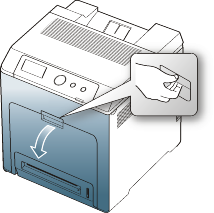
-
Do not touch the green surface, the OPC drum or the front of the print cartridge, with your hands or any other material. Use the handle on each cartridge in order to avoid touching this area.
-
Be careful not to scratch the surface of the paper transfer belt.
-
If you leave the front cover open for more than a few minutes, the OPC drum can be exposed to light. This will cause damage to the OPC drum. Cover the OPC drum of the print cartridge with the clean paper to avoid damaging it from the light while you clean the inside.
-
-
Press the green release handle to release the paper transfer belt. Holding the handle on the paper transfer belt, lift it out of the machine.

-
Grasp the handles on the print cartridge and pull to remove all the cartridge from the machine.
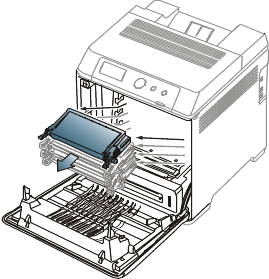
If you open the front cover, be careful not to touch the underneath the control panel (the lower part of the fuser unit). The temperature of the fuser unit might be high and could damage your skin.
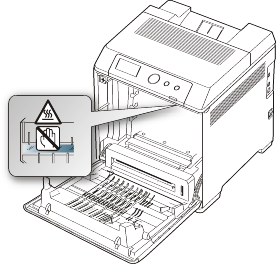
![[Note]](../common/note.png)
When you open the front cover and work inside the machine, it is highly recommend that you remove the paper transfer belt first. Because the work you do could contaminate the paper transfer belt.
-
With a dry, lint-free cloth, wipe away any dust and spilled toner from the toner cartridge area.
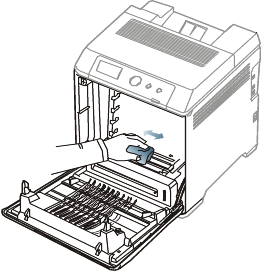
If toner gets on your clothing, wipe it off with a dry cloth and wash it in cold water. Hot water sets toner into fabric.
-
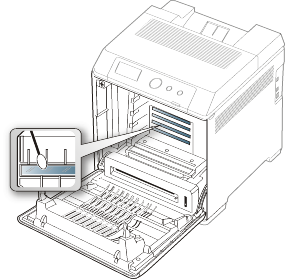
Locate the long strip of glass (LSU) inside the top of the cartridge compartment and gently swab the glass to see if dirt turns the white cotton black.
-
Slide the toner cartridge back into the machine.
-
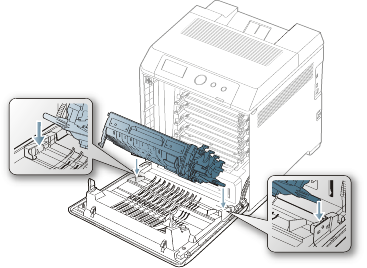
Holding the handle on the paper transfer belt, align it with the slots on the inside of the front cover.
-
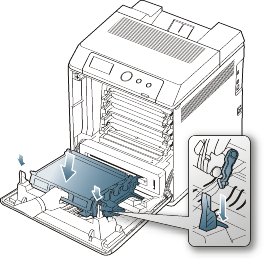
Lower the paper transfer belt until it is parallel with the front cover and firmly seated.
-
Close the front cover. Ensure that the cover is securely closed.
If the front cover is not completely closed, the machine will not operate.
-
Plug in the power cord and turn the machine on.
Toner cartridges contain components that are sensitive to light, temperature, and humidity. Samsung suggests users follow the recommendations to ensure the optimum performance, highest quality, and longest life from your new Samsung toner cartridge.
Store this cartridge in the same environment as the printer it will be used in; this should be in controlled office temperature and humidity conditions. The toner cartridge should remain in its original, unopened package until installation – If original packaging is not available, cover the top opening of the cartridge with paper and store in a dark cabinet.
Opening the cartridge package prior to use dramatically shortens its useful shelf and operating life. Do not store on the floor. If the toner cartridge is removed from the printer, always store the cartridge:
-
Inside the protective bag from the original package.
-
Store lying flat (not standing on end) with the same side facing up as if they were installed in the machine.
-
Do not store consumables in;
-
Temperature greater than 40°C (104°F).
-
Humidity range less than 20% or greater than 80%.
-
An environment with extreme changes in humidity or temperature.
-
Direct sunlight or room light.
-
Dusty places.
-
A car for a long period of time.
-
An environment where corrosive gases are present.
-
An environment with salty air.
-
-
Do not touch the surface of the photosensitive drum in the cartridge.
-
Do not expose the cartridge to unnecessary vibrations or shock.
-
Never manually rotate the drum, especially in the reverse direction; this can cause internal damage and toner spillage.
Samsung Electronics does not recommend or approve the use of non-Samsung brand toner cartridges in your printer including generic, store brand, refilled, or remanufactured toner cartridges.
|
|
|
|
Samsung’s printer warranty does not cover damage to the machine caused by the use of a refilled, remanufactured, or non-Samsung brand toner cartridge. |
Estimated cartridge life (the life of the toner cartridge yield) depends on the amount of toner that print jobs require. The actual print-out number may vary depending on the print density of the pages you print on, operating environment, printing interval, media type, and/or media size. For example, if you print a lot of graphics, the consumption of the toner is high and you may need to change the cartridge more often.
-
When moving the machine, do not tilt or turn it upside down. Otherwise, the inside of the machine may be contaminated by toner, which can cause damage to the machine or bad print quality.
-
When moving the machine, make sure at least two people are holding the machine securely.