Management tools
This chapter introduces management tools provided to help you make full use of your machine.
This tool helps you screen-capture, preview, scrap, and print Windows Internet Explorer pages more easily, than when you use an ordinary program. Click > > > > to link to the website where the tool is available for download.
![[Note]](../common/note.png)
|
|
|
Accessing SyncThru™ Web Service
-
Access a web browser, such as Internet Explorer, from Windows.
Enter the machine IP address of your printer (http://xxx.xxx.xxx.xxx) in the address field and press the Enter key or click .
-
Your machine’s embedded website opens.
Logging into SyncThru™ Web Service
Before configuring options in SyncThru™ Web Service, you need to log-in as an administrator. You can still use SyncThru™ Web Service without logging in but you won’t have access to tab and tab.
-
Click on the upper right of the SyncThru™ Web Service website.
-
Type in the and then click .
-
:
-
:
-
SyncThru™ Web Service overview

|
|
|
|
Some tabs may not appear depending on your model. |
tab
This tab gives you general information about your machine. You can check things, such as remaining amount of toner. You can also print reports, such as an error report.
-
: Shows the alerts that have occurred in the machine and their severity.
-
: Shows how many pages are printed and amount of toner left in the cartridge.
-
: Shows the usage count by print types: simplex and duplex.
-
: Shows the machine’s and network’s information.
-
: Prints reports such as system related reports and font reports.
tab
This tab allows you to set configurations provided by your machine and network. You need to log-in as an administrator to view this tab.
-
tab: Sets options provided by your machine.
-
tab: Shows options for the network environment. Sets options such as TCP/IP and network protocols.
tab
This tab allows you to set system and network security information. You need to log-in as an administrator to view this tab.
-
: Sets the system administrator’s information and also enables or disables machine features.
-
: Sets settings for HTTPs, IPSec, IPv4/IPv6 filtering, and 802.1x.
tab
This tab allows you to maintain your machine by upgrading firmware and setting contact information for sending emails. You can also connect to Samsung website or download drivers by selecting the menu.
-
: Upgrade your machine’s firmware.
-
: Shows the contact information.
-
: Shows links to useful sites where you can download or check information.
E-mail notification setup
You can receive emails about your machine’s status by setting this option. By setting information such as IP address, host name, e-mail address and SMTP server information, the machine status (toner cartridge shortage or machine error) will be sent to a certain person's e-mail automatically. This option may be used more frequently by a machine administrator.
-
Start a web browser, such as Internet Explorer, from Windows.
Enter the machine IP address (http://xxx.xxx.xxx.xxx) in the address field and press the Enter key or click .
-
Your machine’s embedded website opens.
-
From the tab, select > .
If you have not configured outgoing server environment, go to > > to configure network environment before setting e-mail notification.
-
Select check box to use the .
-
Click button to add e-mail notification user.
Set the recipient name and e-mail address(es) with notification items you want to receive an alert for.
-
Click .
|
|
|
|
If the firewall is activated, the e-mail may not be sent successfully. In that case, contact the a network administrator. |
Setting the system administrator’s information
This setting is necessary for using the e-mail notification option.
-
Start a web browser, such as Internet Explorer, from Windows.
Enter the machine IP address (http://xxx.xxx.xxx.xxx) in the address field and press the Enter key or click .
-
Your machine’s embedded website opens.
-
From the tab, select >
-
Enter the name of the administrator, phone number, location, and email address.
-
Click .
Using Samsung Easy Printer Manager (Windows only)
Samsung Easy Printer Manager is a Windows-based application that combines Samsung machine settings into one location. Samsung Easy Printer Manager combines device settings as well as printing environments, settings/actions and launching. All of these features provide a gateway to conveniently use your Samsung machine. Samsung Easy Printer Manager provides two different user interfaces for the user to choose from: the basic user interface and the advanced user interface. Switching between the two interfaces is easy: just click a button.
|
|
|
|
Internet Explorer 6.0 or higher is the minimum requirement for Samsung Easy Printer Manager. |
Understanding Samsung Easy Printer Manager
To open the program:
Select > or > > Samsung Easy Printer Manager > Samsung Easy Printer Manager.
The Samsung Easy Printer Manager interface is comprised of various basic sections as described in the table that follows:

|
1 |
Printer List |
The printer list displays the installed printer icons on your computer. |
|||
|
2 |
Printer Information |
This area gives you general information about your machine. You can check information, such as the machine’s model name, IP address (or Port name), and machine status.
|
|||
|
3 |
Application information |
Includes links for changing to the advanced settings, preference, help, and about.
|
|||
|
4 |
Quick links |
Displays to machine specific functions. This section also includes links to applications in the advanced settings. |
|||
|
5 |
Contents Area |
Displays information about the selected machine, remaining toner level, and paper. The information will vary based on the machine selected. Some machines do not have this feature. |
|||
|
6 |
Order Supplies |
Click on the button from the supply ordering window. You can order replacement toner cartridge(s) from online. |

|
|
|
|
Click the ( |

Advanced settings user interface overview
The advanced user interface is intended to be used by the person responsible for managing the network and machines.
You can configure various machine settings such as machine setup, paper, layout, emulation, network, and print information.
This is menu includes settings related to error alerting.
-
: Provides settings related to when alerts will be received.
-
: Povides options relating to receiving alerts via email.
-
: Provides a history of device and toner related alerts.
Provides querying of quota information of the specified job accounting user. This quota information can be created and applied to devices by job accounting software such as SyncThru™ or CounThru™ admin software.
The Samsung Printer Status is a program that monitors and informs you of the machine status.
|
|
|
|
Samsung Printer Status overview
If an error occurs while operating, you can check the error from the Samsung Printer Status. Samsung Printer Status is installed automatically when you install the machine software.
You can also launch Samsung Printer Status manually. Go to the , click the tab > button.
These icons appear on the Windows task bar:
|
Icon |
Mean |
Description |
|---|---|---|
|
|
Normal |
The machine is in ready mode and experiencing no errors or warnings. |
|
|
Warning |
The machine is in a state where an error might occur in the future. For example, it might be in toner low status, which may lead to toner empty status. |
|
|
Error |
The machine has at least one error. |


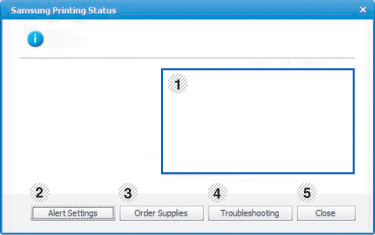
|
1 |
Toner Level |
You can view the level of toner remaining in each toner cartridge. The machine and the number of toner cartridge(s) shown in the above window may differ depending on the machine in use. Some machines do not have this feature. |
|
2 |
|
Select the settings you want from the options window. |
|
3 |
|
You can order replacement toner cartridge(s) from online. |
|
4 |
|
You can directly open the troubleshooting section in the user’s guide. |
|
5 |
|
Close the window. |
Smart Panel is a program that monitors and informs you of the machine’s status, and allows you to customize the machine’s settings. For Macintosh, Smart Panel is installed automatically when you install the machine software. For Linux, you can download Smart Panel from the Samsung website.
|
|
|
|
Smart Panel overview
If an error occurs while operating, you can check the error from the Smart Panel. You can also launch Smart Panel manually.
|
Macintosh |
|
Click this icon the Smart Panel icon on the menu bar. |
|
Linux |
|
Double-click the Smart Panel icon in the Notification Area. |


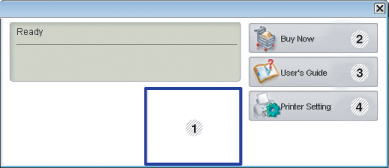
|
1 |
Toner Level |
You can view the level of toner remaining in each toner cartridge. The machine and the number of toner cartridge(s) shown in the above window may differ depending on the machine in use. Some machines do not have this feature. |
|||
|
2 |
|
You can order replacement toner cartridge(s) from online. |
|||
|
3 |
|
You can view the online User’s Guide.
|
|||
|
4 |
You can configure various machine settings in the Printer Settings Utility window. Some machines do not have this feature.
|
Changing Smart Panel ‘s settings
Right-click in Linux or in Mac OS X click on the Smart Panel icon and select . Select the settings you want from the window.
Unified Driver Configurator is a tool primarily intended for configuring machine devices. You need to install Unified Linux Driver to use Unified Driver Configurator (See Linux).
After the driver is installed on your Linux system, the Unified Driver Configurator icon will automatically be created on your desktop.
Opening the Unified Driver Configurator
-
Double-click the on the desktop.
You can also click the startup menu icon and select > .
-
Click each button on the left to switch to the corresponding configuration window.
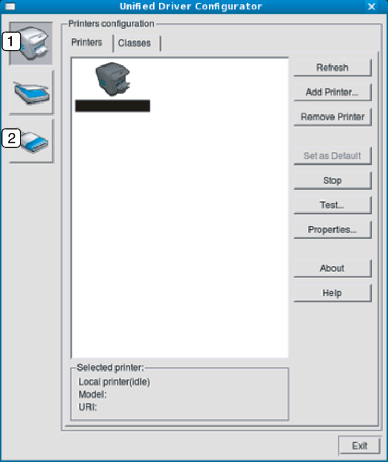
To use the on screen help, click .
-
-
After changing the configurations, click to close the Unified Driver Configurator.
has the two tabs: and .
Tab
View the current system’s printer configuration by clicking on the machine icon button on the left side of the Unified Driver Configurator window.

|
1 |
Switches to . |
|
2 |
Shows all of the installed machine. |
|
3 |
Shows the status, model name and URI of your machine. |
The printer control buttons are, as follows:
-
: Renews the available machines list.
-
: Allows you to add a new machines.
-
: Removes the selected machine.
-
: Sets the current selected machine as a default machine.
-
: Stops/starts the machine.
-
: Allows you to print a test page to ensure the machine is working properly.
-
: Allows you to view and change the printer properties.
Tab
The Classes tab shows a list of available machine classes.
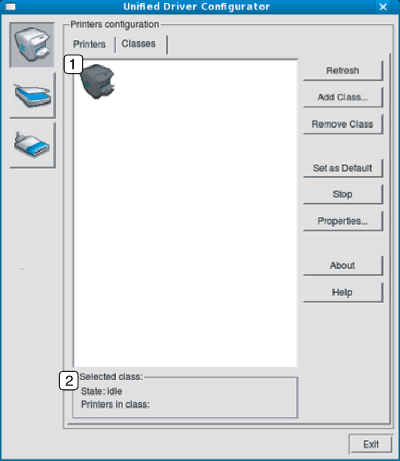
|
1 |
Shows all of the machine classes. |
|
2 |
Shows the status of the class and the number of machines in the class. |
-
: Renews the classes list.
-
: Allows you to add a new machine class.
-
: Removes the selected machine class.
In this window, you can view the list of available ports, check the status of each port and release a port that is stalled in a busy state when its owner has terminated the job for any reason.
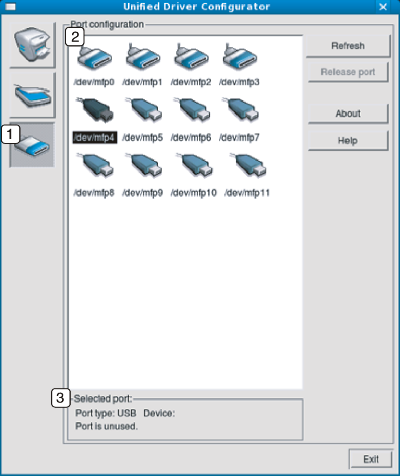
|
1 |
Switches to . |
|
2 |
Shows all of the available ports. |
|
3 |
Shows the port type, device connected to the port, and status |
-
: Renews the available ports list.
-
: Releases the selected port.