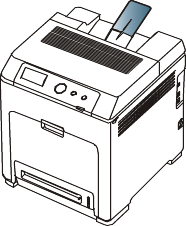
Media and tray
This chapter provides information on how to load print media into your machine.
Selecting print media
You can print on a variety of print media, such as plain paper, envelopes, labels, and transparencies. Always use print media that meet the guidelines for use with your machine.
Print media that does not meet the guidelines outlined in this user’s guide may cause the following problems:
-
Poor print quality
-
Increased paper jams
-
Premature wear on the machine.
Properties, such as weight, composition, grain, and moisture content, are important factors that affect the machine’s performance and the output quality. When you choose print materials, consider the following:
-
The type, size and weight of the print media for your machine are described in print media specifications. (See Print media specifications .)
-
Desired outcome: The print media you choose should be appropriate for your project.
-
Brightness: Some print media are whiter than others and produce sharper, more vibrant images.
-
Surface smoothness: The smoothness of the print media affects how crisp the printing looks on the paper.
![[Note]](../common/note.png)
|
|
|
![[Caution]](../common/caution.png)
|
|
|
![[Warning]](../common/warning.png)
|
|
|
The use of inflammable media or foreign materials left in the printer may lead to overheating of the unit and, in rare cases may cause a fire. |
The amount of paper put into the tray may differ according to media type used. (See Print media specifications .)
Media sizes supported in duplex mode
|
Mode |
Size |
Type |
Source |
|---|---|---|---|
|
Duplex printing[a] |
Letter, A4, Legal, US Folio, Oficio |
|
|
|
[a] 60 to 120 g/m2 (16~32 lb bond) only. [b] If media weight is 120 g/m2 (32 lb bond), load a paper into the multi-purpose tray one by one. [c] If media weight is 60 g/m2 (16 lb bond), select the Thin type. |
|||
The tray is preset to Letter or A4 size, depending on your country. To change the size, you need to adjust the paper guides.
-
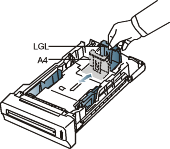
Push the back plate of the tray outwards completely so that it can extend the length of the tray.
-
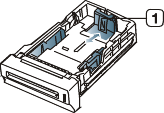
Squeeze the paper length guide and slide it to the correct position for the paper size you are loading, which is marked at the bottom of the tray.
-
Paper length guide
-
-
Flex or fan the edge of the paper stack to separate the pages before loading papers.

To keep paper with perforated lines from sticking together when printing, you must fan the sheets before feeding them into the machine.
-
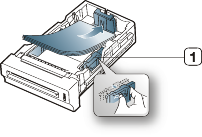
After inserting paper into the tray, squeeze the paper width guides and slide them to the desired paper size marked at the bottom of the tray.
-
Paper width guide
-
Do not push the paper width guide too far causing the media to warp.
-
If you do not adjust the paper width guide, it may cause paper jams.

-
Loading paper in the tray
Load the print media you use for the majority of your print jobs into tray 1. Tray 1 can hold a maximum of 500 sheets of plain paper.
You can purchase an optional tray and attach it below the standard tray to load an additional 500 sheets of plain paper. (See Available supplies.)
|
|
|
|
Using photographic paper or coated paper may cause problems, requiring repairs. Such repairs are not covered by the warranty or service agreements. |
-
Pull out tray. And adjust the tray size to the media size you are loading. (See Changing the tray size.)
-
Flex or fan the edge of the paper stack to separate the pages before loading papers.
To keep paper with perforated lines from sticking together when printing, you must fan the sheets before feeding them into the machine.
-
Place paper with the side you want to print facing up.
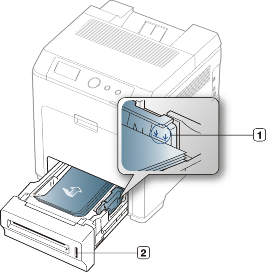
-
Paper limit mark
-
Paper level indicator
Paper quantity indicator shows the amount of paper in the tray.
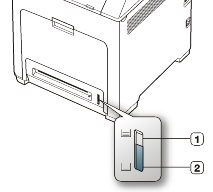
-
Full
-
Empty
-
-
When you print a document, set the paper type and size for the tray.
For information about setting the paper type and size on the control panel. (See Setting the paper size and type.)
-
If you experience problems with paper feeding, check whether the paper meets the media specification. Then, try placing one sheet at a time in the multi-purpose tray.(See Print media specifications .)
-
The settings made from the machine driver override the settings on the control panel.
-
To print in application, open an application and start the print menu.
-
Open . (See Opening printing preferences.)
-
Press the tab in , and select an appropriate paper type.
For example, if you want to use a label, set the paper type to .
-
Select tray in paper source, then press .
-
Start printing in application.
-
The multi-purpose tray can hold special sizes and types of print material, such as postcards, note cards, and envelopes. It is useful for single page printing on letterhead or colored paper.
|
|
|
|
Print media should be loaded face down with the top edge going into the multi-purpose tray first and be placed in the center of the tray. |
-
Load only one type, size and weight of print media at a time in the multi-purpose tray.
-
To prevent paper jams, do not add paper while printing when there is still paper in the multi-purpose tray. This also applies to other types of print media.
-
Always load the specified print media only to avoid paper jams and print quality problems. (See Print media specifications .)
-
Flatten any curl on postcards, envelopes, and labels before loading them into the multi-purpose tray.
-
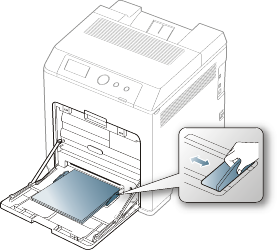
Hold the handle of multi-purpose tray and pull it down to open.
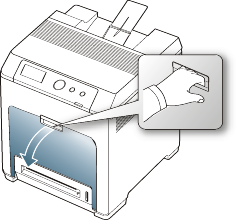
-
Flex or fan the edge of the paper stack to separate the pages before loading papers.
To keep paper with perforated lines from sticking together when printing, you must fan the sheets before feeding them into the machine.
-
Load the paper.
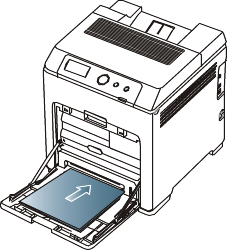
-
Squeeze the multi-purpose tray paper width guides and adjust them to the width of the paper. Do not force them too much, or the paper will bent resulting in a paper jam or skew.
-
When printing the special media, you must follow the loading guideline. (See Printing on special media.)
-
When papers overlap when printing using Multi-purpose tray, open tray 1 and remove overlapping papers then try printing again.
-
When paper does not feed well while printing, push the paper in manually until it starts feeding automatically.
-
-
When you print a document, set the paper type and size for the multi-purpose tray.
For information about setting the paper type and size on the control panel. (See Setting the paper size and type.)
The settings made from the machine driver override the settings on the control panel.
-
To print in application, open an application and start the print menu.
-
Open . (See Opening printing preferences.)
-
Press the tab in , and select an appropriate paper type.
For example, if you want to use a label, set the paper type to .
-
Select in paper source, then press .
-
Start printing in application.
-
After printing, close the multi-purpose tray.
-
The table below shows the available special media for each tray.
|
|
|
|
When using special media, we recommend you feed one paper at a time. Check the maximum input number of media for each tray. (See Print media specifications .) |
|
Types |
Tray 1 |
Optional trays |
Multi-purpose tray |
|---|---|---|---|
|
|
● |
● |
● |
|
|
● |
● |
● |
|
|
● |
● |
● |
|
|
● |
● |
● |
|
|
● |
● |
● |
|
|
● |
● |
● |
|
|
● |
● |
● |
|
|
● |
● |
● |
|
|
● |
● |
● |
|
|
● |
||
|
|
● |
||
|
|
● |
||
|
|
● |
||
|
|
● |
||
|
|
● |
( ●: Included, Blank: Not available)
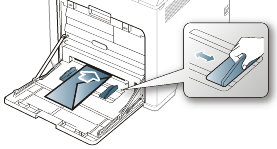
Successful printing on envelopes depends upon the quality of the envelopes.
To print an envelope, place it flap side up with the stamp area bottom the top right side.
-
When selecting envelopes, consider the following factors:
-
Weight: The weight of the envelope paper should not exceed 90 g/m2 otherwise, jam may occur.
-
Construction: Prior to printing, envelopes should lie flat with less than 6 mm curl, and should not contain air.
-
Condition: Envelopes should not be wrinkled, nicked, nor damaged.
-
Temperature: Use envelopes that are compatible with the heat and pressure of the machine during operation.
-
-
Use only well-constructed envelopes with sharp-and well-creased folds.
-
Do not use stamped envelopes.
-
Do not use envelopes with clasps, snaps, windows, coated lining, self-adhesive seals, or other synthetic materials.
-
Do not use damaged or poorly made envelopes.
-
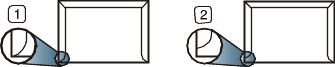
Be sure the seam at both ends of the envelope extends all the way to the corner of the envelope.
-
Acceptable
-
Unacceptable
-
-
Envelopes with a peel-off adhesive strip or with more than one flap that folds over to seal must use adhesives compatible with the machine’s fusing temperature for 0.1 second. To view the fusing temperature, check your machine’s specification. (See General specifications.) The extra flaps and strips might cause wrinkling, creasing, or jams, and may even damage the fuser.
-
For the best print quality, position margins no closer than 15 mm from the edges of the envelope.
-
Avoid printing over the area where the envelope’s seams meet.
To avoid damaging the machine, use only transparencies designed for use in laser printers.
|
|
|
|
In case of color printing using transparencies, the picture quality would be lower than mono printing when the printouts are used on the overhead projector. |
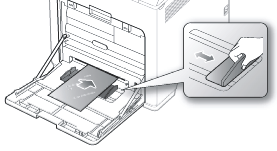
-
Transparencies used in the machine must be able to withstand machine’s fusing temperature.
-
Place them on a flat surface after removing them from the machine.
-
Do not leave unused transparencies in the paper tray for long periods of time. Dust and dirt may accumulate on them, resulting in spotty printing.
-
To avoid smudging caused by fingerprints, handle them carefully.
-
To avoid fading, do not expose printed transparencies to prolonged sunlight.
-
Ensure that transparencies are not wrinkled, curled, or have any torn edges.
-
Do not use transparencies that separates from the backing sheet.
-
To prevent transparencies from sticking to each other, do not let the printed sheets stack up as they are begin printed out.
-
Recommended media: Transparency for color laser printers produced by Xerox, such as 3R 91331(A4) and 3R 2780(Letter), are recommended.
Base type transparency (ex. Xerox 3R3117) results in better image and paper handling quality than paper backed (ex. Xerox 3R3028) or removable stripe (3R3108) ones.
-
Transparency with static electricity can cause image quality problems.
-
Depending on the selection or storage conditions of the transparency, jam or image scratch might occur.
-
To avoid damaging the machine, use only labels designed for use in laser machines.
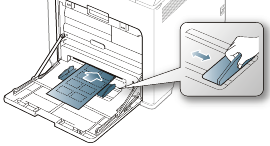
-
When selecting labels, consider the following factors:
-
Adhesives: The adhesive material should be stable at your machine’s fusing temperature. Check your machine’s specification to view the fusing temperature. (See General specifications.)
-
Arrangement: Only use labels with no exposed backing between them. Labels can peel off sheets that have spaces between the labels, causing serious jams.
-
Curl: Prior to printing, labels must lie flat with no more than 13 mm of curl in any direction.
-
Condition: Do not use labels with wrinkles, bubbles, or other indications of separation.
-
-
Make sure that there is no exposed adhesive material between labels. Exposed areas can cause labels to peel off during printing, which can cause paper jams. Exposed adhesive can also cause damage to machine components.
-
Do not run a sheet of labels through the machine more than once. The adhesive backing is designed for only a single pass through the machine.
-
Do not use labels that are separating from the backing sheet or are wrinkled, bubbled, or otherwise damaged.
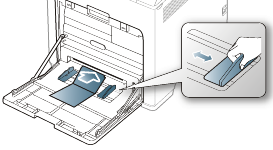
-
Do not print on media smaller than 76 mm (3 inches) wide or 127 mm (5 inches) long.
-
In the software application, set margins at least 6.4 mm (0.25 inches) away from the edges of the material.
|
Single-sided |
double-sided |
|
|---|---|---|
|
Tray1/Optional trays |
Face up |
Face down |
|
Multi-purpose tray |
Face down |
Face up |
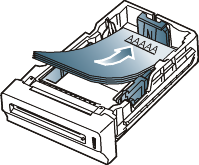
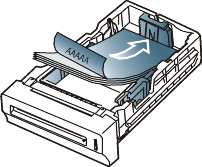
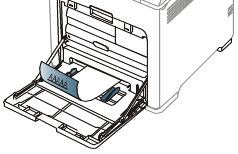
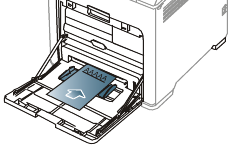
-
Letterhead/ Preprinted paper must be printed with heat-resistant ink that will not melt, vaporize, or release hazardous emissions when subjected to the machine’s fusing temperature for 0.1 second. Check your machine’s specification to view the fusing temperature. (See General specifications.)
-
Letterhead/ Preprinted paper ink must be non-flammable and should not adversely affect machine rollers.
-
Forms and letterhead should be sealed in a moisture-proof wrapping to prevent changes during storage.
-
Before you load letterhead/preprinted paper, verify that the ink on the paper is dry. During the fusing process, wet ink can come off preprinted paper, reducing print quality.
Used paper
When loading used paper, printed side should be facing up with an uncurled edge at the front. If you experience problems with paper feed, turn the paper around. Note that print quality is not guaranteed.
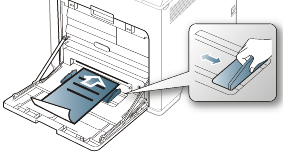
-
Used paper must be printed with heat-resistant ink that will not melt, vaporize, or release hazardous emissions when subjected to the machine’s fusing temperature for 0.1 second. Check your machine’s specification to view the fusing temperature. (See General specifications.)
-
Used paper ink must be non-flammable and should not adversely affect machine rollers.
-
Before you load used paper, verify that the ink on the paper is dry. During the fusing process, wet ink can come off used paper, reducing print quality.
-
Make sure not to use the inkjet photo paper with this machine. It could cause damage to the machine.
After loading paper in the paper tray, set the paper size and type using the control panel. For computer printing, select the paper size and type in the application program, select the tab in the . (See Opening printing preferences.)
|
|
|
|
The settings made from the machine driver override the settings on the control panel. |
-
Press
 on
the control panel.
on
the control panel. -
Press up/down arrow to highlight and press .
-
Press up/down arrow to select the paper tray you want press .
-
Press up/down arrow to highlight and press .
-
Press up/down arrow to select the paper size you want.
-
Press to save the selection.
-
Press up/down arrow to highlight and press .
-
Press up/down arrow to select the paper type you want.
-
Press to save the selection.
-
Press
 .
. -
Press up/down arrow to highlight and press .
-
Press up/down arrow to select the paper tray you want.
-
press to save the selection.
-
Press
 to
return to ready mode.
to
return to ready mode.
|
|
|
|
If you want to use special-sized paper-such as a billing paper, select in the tab in the . (See Opening printing preferences.) |
|
|
|
|
The surface of the output tray may become hot if you print a large number of pages at once. Make sure that you do not touch the surface, and do not allow children near it. |
The printed pages stack on the output support, and the output support will help the printed pages to align. Unfold the output support.